
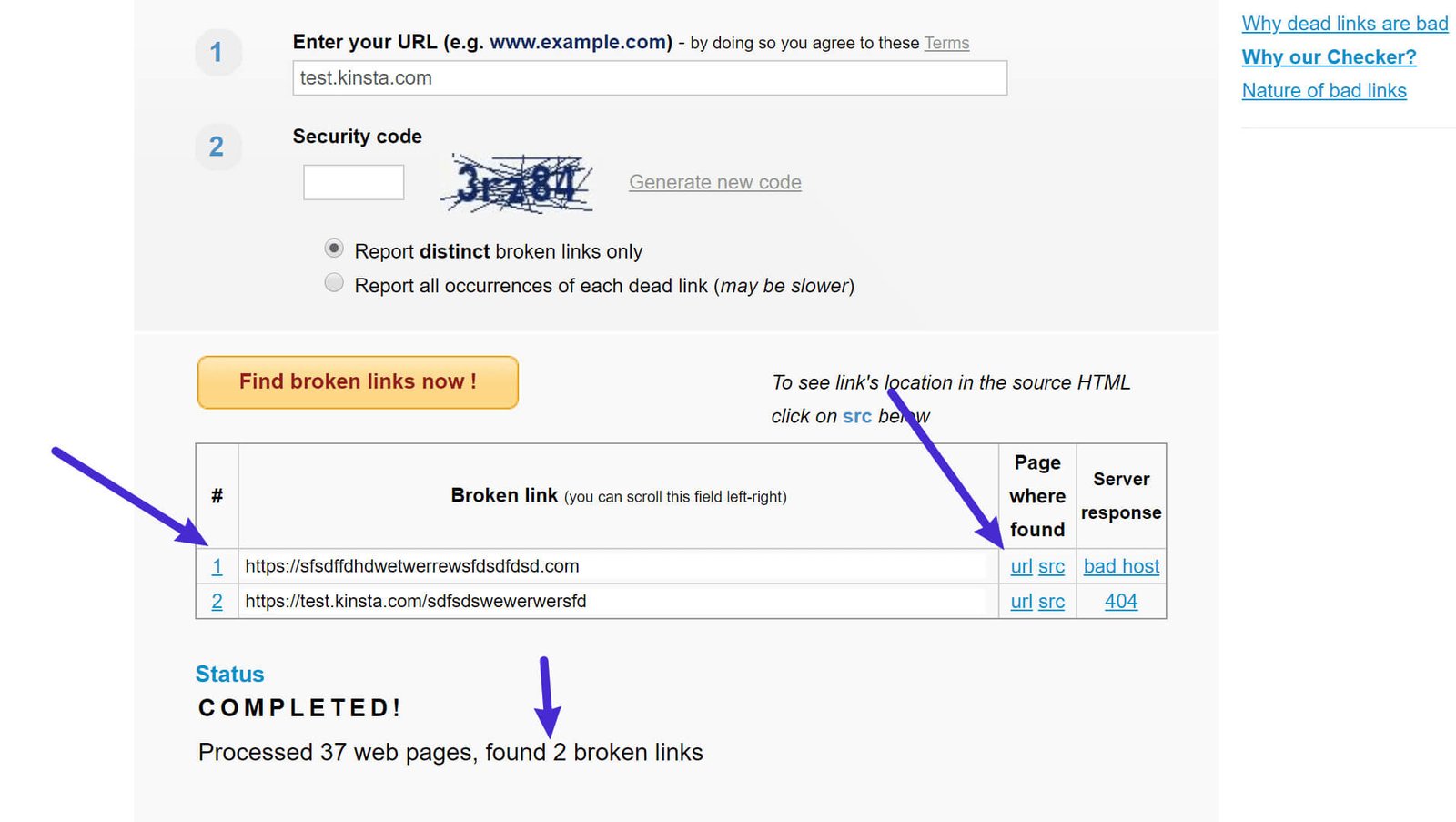
Find broken links with a crawl, confirm them in WordPress, then fix the source page instead of only hiding the error. A broken link can block users from reaching key content, waste crawl budget, and weaken trust. Google says a 404 status is normal when a page is truly gone, but you should still repair links that point users to dead pages.
TLDR: Run a broken link scan once a month, review the results by priority, and fix internal links first. For example, a small service website with 320 pages may find 40 to 70 broken links after a redesign, especially from old blog posts and deleted service pages. If even 5% of visitors hit a dead page during checkout, booking, or quote requests, that is lost revenue. Use redirects only when there is a relevant replacement page; do not send every old URL to the homepage.
Why broken links matter
Broken links are more than a tidy-up issue. They create friction. A visitor clicks a guide, product, form, or download and gets an error. That small failure can be enough to make them leave.
Search engines also use links to understand your site. If important internal links point to missing pages, your structure becomes weaker. Your analytics may show higher exits, lower engagement, and poor conversion paths. It drives me crazy when a site looks polished on the surface, but the footer, old blog posts, and image links quietly send people into dead ends.
Broken links usually fall into these groups:
- Internal broken links: links from your site to another page on your site that no longer exists.
- External broken links: links from your site to another website that returns an error.
- Broken media links: missing images, PDFs, videos, or downloadable files.
- Redirect chains: links that pass through several redirects before reaching the final page.
- Broken anchors: jump links that point to a section ID that has been removed.
Step 1: Run a full site scan
Start with a crawler. Do not rely only on what you notice by clicking around. Manual checks miss too much.
Good options include:
- Google Search Console: useful for indexing and 404 reports.
- Screaming Frog SEO Spider: strong for full technical crawls.
- Ahrefs Site Audit or Semrush Site Audit: useful if you already use a paid SEO suite.
- WordPress broken link plugins: convenient for smaller sites, but should be used with care.
For most WordPress sites, a crawler plus Google Search Console is enough. Search Console can show pages that returned “Not found” errors, while a crawler shows where the broken links are actually placed. That second part matters. You need to know the source page, not just the dead URL.
If you use a WordPress plugin, avoid leaving it running all the time on a busy site. Some scanners can increase database load. On cheap hosting, that can add several seconds to admin page loads. Run the scan, export the results, fix the links, then disable the plugin if performance suffers.
Step 2: Sort the links by impact
Do not fix links in random order. Start with the pages that affect users and revenue most.
Use this priority order:
- Homepage, menus, header, and footer links. These appear across your site.
- Product, service, booking, checkout, and contact pages. These affect leads and sales.
- High-traffic blog posts. Use analytics to find posts with steady visits.
- Important landing pages. Paid ads and email campaigns often point here.
- Older low-traffic content. Fix these after the business-critical pages.
Export your scan into a spreadsheet. Add columns for source page, broken URL, status code, link text, priority, and action taken. This keeps the work controlled, especially if several people edit the site.
Step 3: Understand the error codes
Not every broken link needs the same fix. Status codes tell you what happened.
- 404 Not Found: the page is missing. Fix the link or create a redirect.
- 410 Gone: the page was removed on purpose. Remove or replace the link.
- 500 Server Error: the destination server has a problem. Recheck later before changing the link.
- 403 Forbidden: access is blocked. Replace the link if users cannot open it.
- 301 or 302 Redirect: not always broken, but update the link to the final URL when possible.
A single redirect is usually fine. A chain of three or four redirects is sloppy. It slows users down and makes maintenance harder. Update the old link to the final destination.
Step 4: Fix internal broken links in WordPress
Internal links are usually the easiest to repair. Go to the page or post where the broken link appears. Replace the URL with the correct live page. If the page still exists but the slug changed, use the current permalink.
In the WordPress block editor, click the linked text, select the link icon, and update the URL. Then save the page. Clear your cache if you use a caching plugin or CDN. Test the link in a private browser window so you see what visitors see.
If many posts link to the same old URL, use a careful search-and-replace tool. Back up your database first. A bad replacement can damage menus, image paths, serialized data, or affiliate tracking links. Honestly, one careless global replacement can create more work than the broken links did.
Step 5: Set up redirects when a page moved
If a page was deleted but has a close replacement, set a 301 redirect. This tells browsers and search engines that the page has permanently moved.
Use a trusted redirect plugin, your SEO plugin’s redirect manager, or server-level redirects if you are comfortable with hosting settings. The key rule is simple: redirect to a page that matches the original intent.
Good redirect:
- /old pricing page/ redirects to /pricing/
Bad redirect:
- /old pricing page/ redirects to the homepage with no pricing information
Homepage redirects may look convenient, but they frustrate users. They also make reports harder to read because the original issue gets hidden instead of properly resolved.
Step 6: Replace or remove external links
External links are trickier because you do not control the destination. First, check whether the page moved. Search the site or use the domain’s own search box. If the content still exists at a new URL, update the link.
If the external page is gone, choose one of these actions:
- Replace it with a current, reliable source.
- Remove the link if it no longer supports the content.
- Update the sentence if the claim depended on that source.
Be careful with statistics in old posts. A broken source link next to a bold claim weakens credibility. If the claim matters, find a current source or rewrite the section.
Step 7: Check images, PDFs, and downloads
Broken media links are common after migrations. They often happen when uploads were not copied, file names changed, or old page builders stored absolute file paths.
Check your Media Library for missing files. Also crawl your site for image 404s and PDF 404s. If a downloadable file was replaced, update every link that points to the old attachment URL. Do not forget buttons, sidebar widgets, popups, and email landing pages.
Step 8: Prevent broken links from coming back
Prevention is easier than bulk repair. Add a simple process before deleting or moving pages.
- Check whether the page has internal links before deleting it.
- Create a redirect before changing a page slug.
- Update menu, footer, sidebar, and button links after major edits.
- Review top landing pages after a redesign or migration.
- Run a monthly crawl for small sites and a weekly crawl for large publishing sites.
Keep a redirect log. Include the old URL, the new URL, the date, and the reason. This sounds dull, but it saves time when someone asks why an old campaign URL points to a new page six months later.
A simple monthly broken link workflow
- Run a full crawl.
- Export all 404s, 410s, and redirect chains.
- Sort by traffic, page type, and business value.
- Fix internal links first.
- Set relevant 301 redirects for moved pages.
- Replace or remove dead external links.
- Clear cache and test the changed pages.
- Record what was fixed.
Broken link maintenance is not glamorous work. Still, it protects user trust, keeps your WordPress site cleaner, and reduces avoidable SEO problems. The best approach is boring but reliable: scan often, fix what matters first, and document every redirect you create.